Closed Captions vs Open Captions - How are they different?

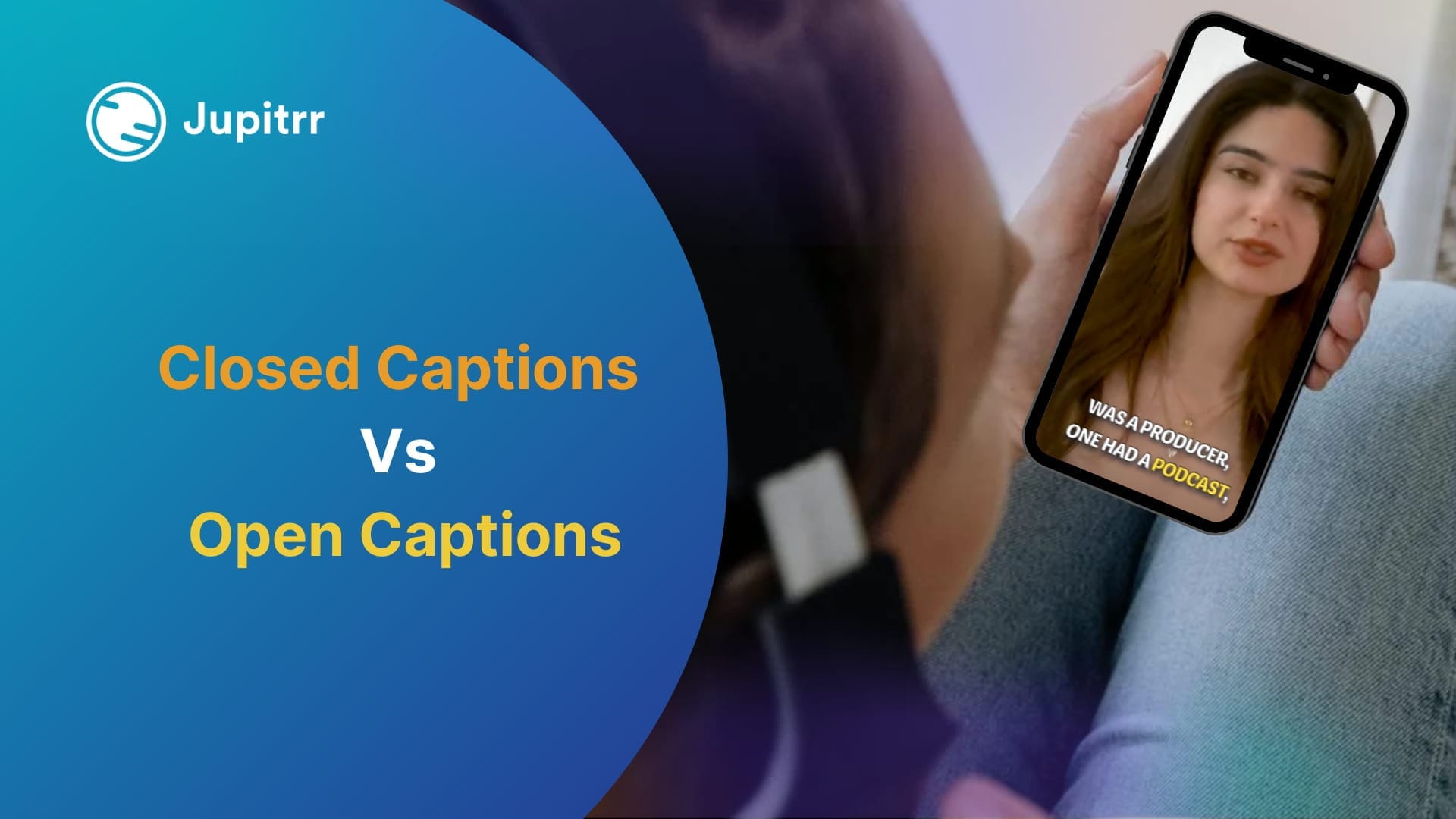
Closed captions and open captions both display text on a video for those who are deaf or hard of hearing, but differ in who sees them. While closed captions are only visible when enabled, open captions are always onscreen for all viewers. Very few creators add captions manually to videos, reducing accessibility.
This article focuses on Closed Captions vs Open Captions.
Let's explore the key differences between closed captions, which viewers can turn on or off, and open captions, which are permanently displayed, to help you choose the right option for your video and audience.
What are Closed Captions?
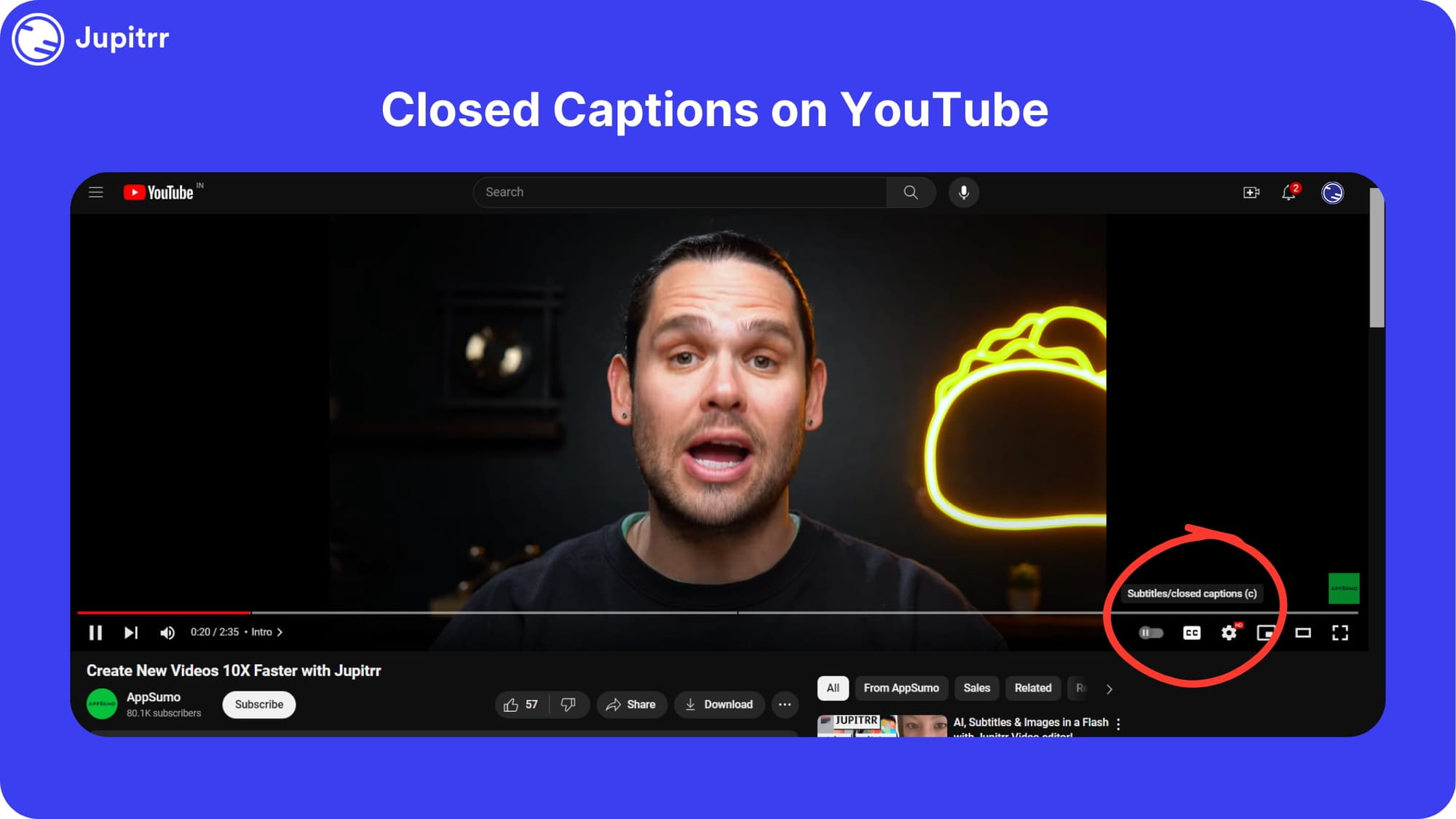
Closed captions, often denoted by the symbol "CC," are a type of text displayed on a screen that transcribes the audio of a video or program.
Generally, Closed captions not only show spoken dialogue, but also identify who is speaking and describe relevant sounds like music, laughter, and sound effects.
They are specifically designed to make content accessible to viewers who are deaf or hard of hearing and also used by people watching the video in loud places.
Laws like the Americans with Disabilities Act (ADA) require captions on most TV shows, movies, and online videos to provide access for those who need them.
What are Open captions?
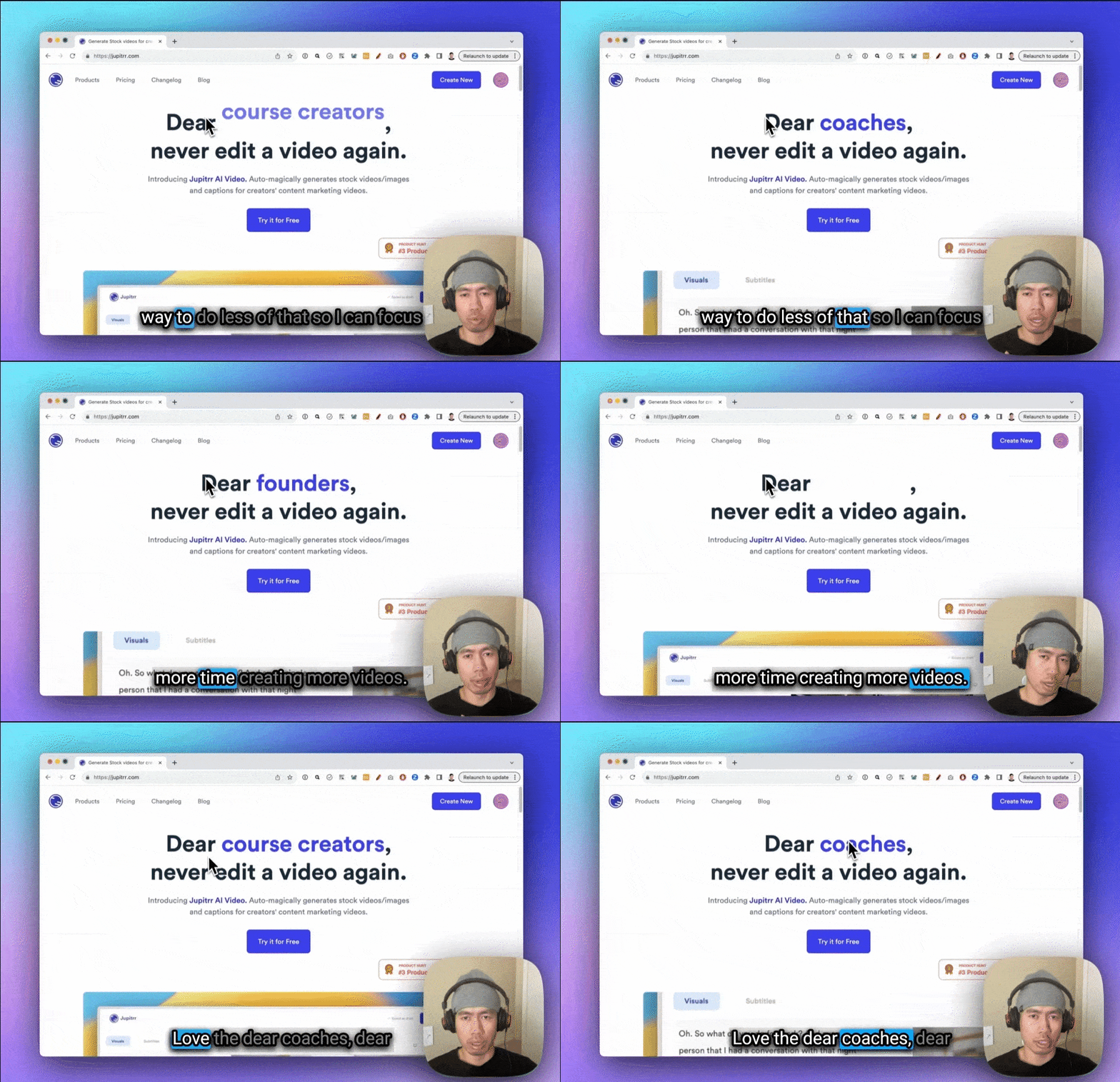
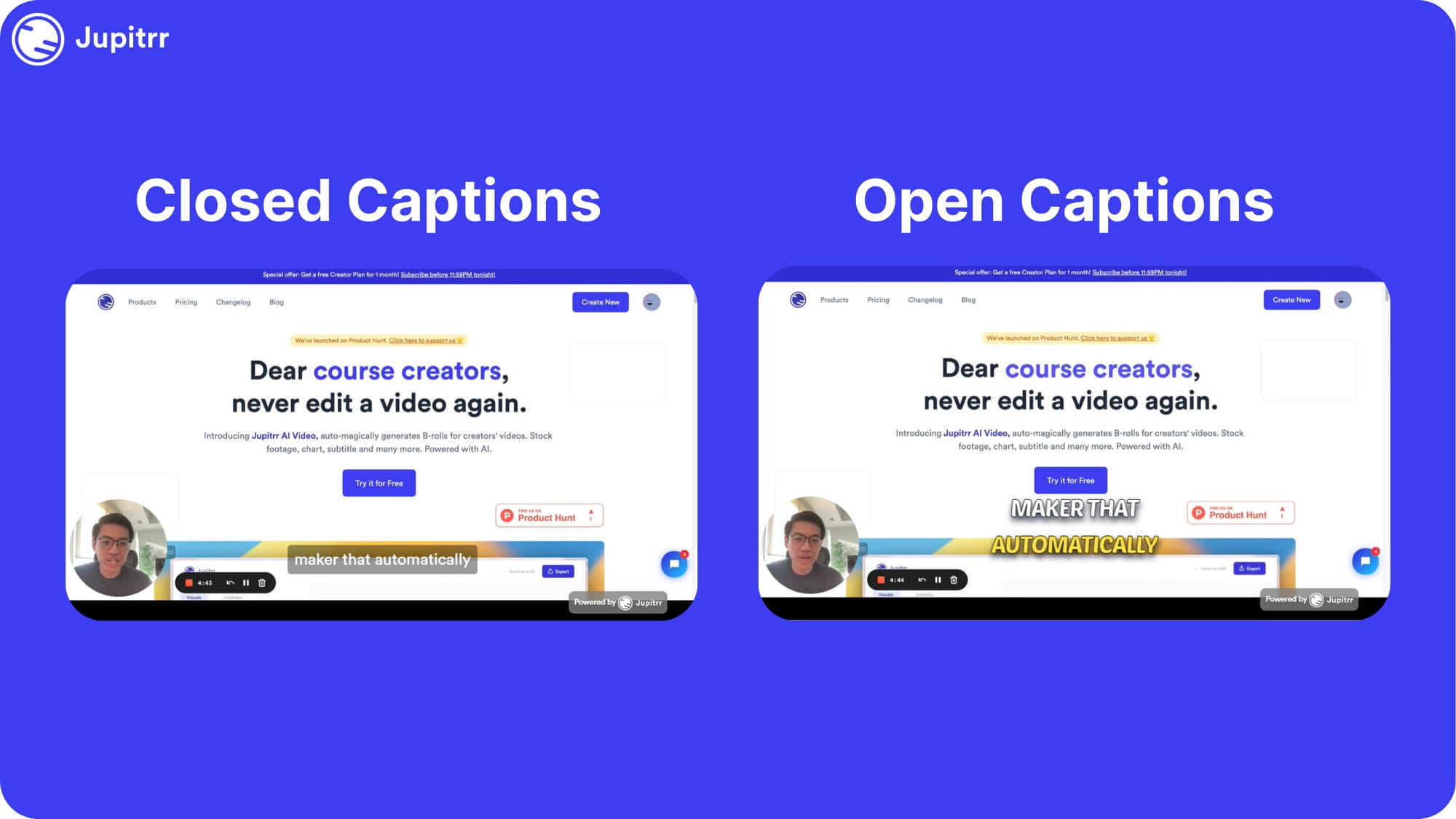
Open captions, also known as burned-in captions, are text overlays integrated directly into the video file. They are "burned in" and permanently part of the video picture, unlike closed captions which are hidden until activated.
Media showed in public events, theatre performances, conferences, classrooms, etc. frequently use open captions so attendees don't have to individually toggle captions on.
Unlike closed captions, there are no laws requiring open captions on mainstream television or streaming media. Their use is voluntary.
Closed Captions vs Open Captions
| Feature | Open Captions | Closed Captions |
|---|---|---|
| Visibility | Always visible; cannot be turned off | Can be toggled on or off by the viewer |
| Display Control | Cannot be controlled by the viewer | Can be controlled by the viewer |
| Editing Flexibility | Embedded directly into the video during editing | Added separately and can be modified or updated |
| Distribution | Permanent part of the video file | Can be added or removed after the video is produced |
| Accessibility | Provides accessibility to viewers who are deaf or hard of hearing | Provides accessibility but offers flexibility for viewers to choose whether to display them or not |
Use Cases of Closed Captions
- Accessibility on Streaming Services: Platforms like Vimeo offer closed caption files to aid those who are deaf or hard of hearing. By providing closed captions, you ensure that a wider audience can access and understand your video content.
- Multilingual Content: Closed captions allow users to choose subtitles in a different language. This feature enhances the user experience on media players globally. Whether your audience speaks English, Spanish, or any other language, closed captions make your content more inclusive.
- Educational Videos: Closed captions are commonly used in educational settings. They ensure that course content is accessible to all students, regardless of their hearing abilities. By providing captions, you create a more inclusive learning environment.
Use Cases of Open Captions
- Social Media Content: Platforms like TikTok, Instagram, LinkedIn and YouTube shorts often benefit from open captions. Content creators use them to ensure their messages reach audiences as these platforms generally do not have closed captions features.
- Webinars & Live Events: During webinars and live events, technical glitches or varying audio quality can occur. Open captions ensure that all attendees receive the information clearly, regardless of audio issues.
Also read: How to add Subtitles to a YouTube Video?
What should you Choose - Open and Closed Captions
Well, it's quite clear, if you are creating a video for social media, you should go for open captions, i.e., add captions to your video. If you are creating a video for a platform like YouTube, Netflix, Vimeo, etc. you should go for closed captions, i.e., create a subtitle file and submit it while uploading the video.
How to add Closed Captions to your video?
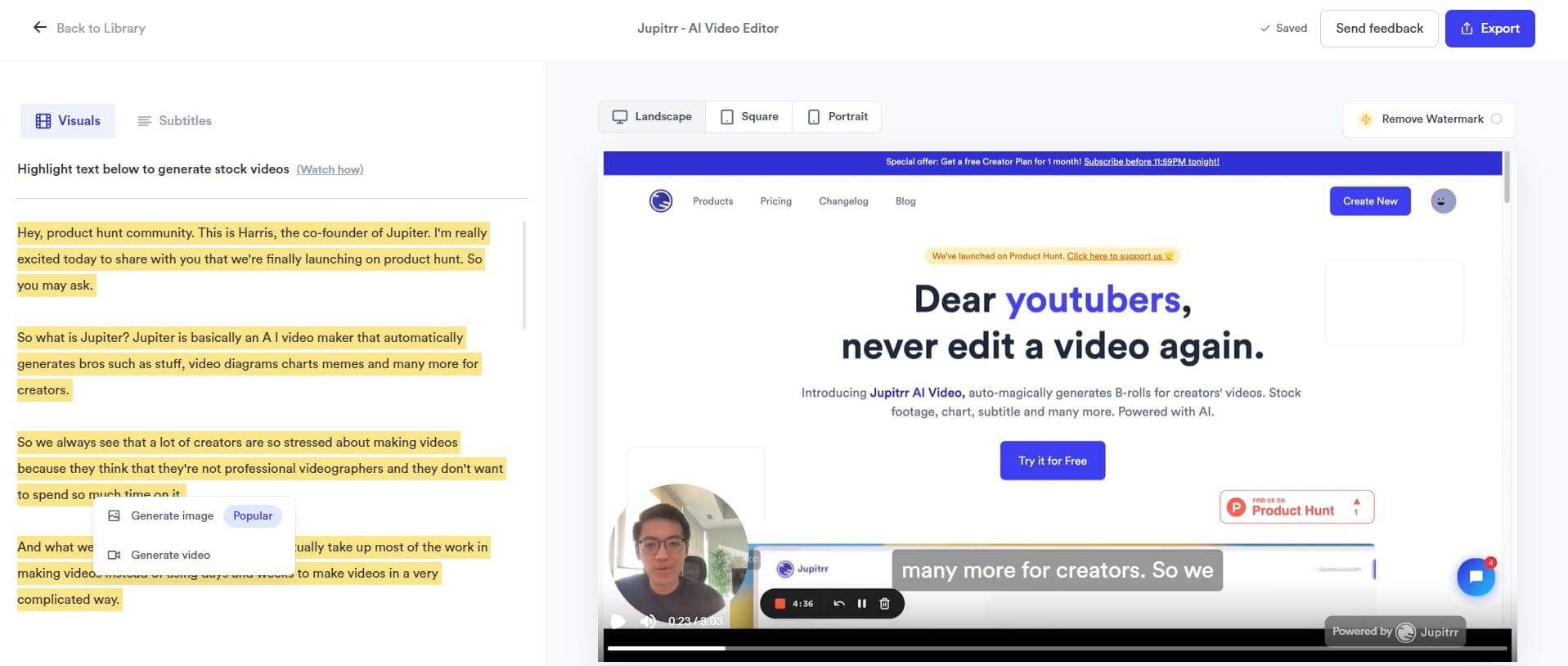
Adding closed captions is easy. All you need is a tool like Jupitrr.
While Jupitrr is made to add subtitles and stock or B-Roll videos, you can use it to create material for your closed caption file.
Follow these steps:
- Step 1- Sign up on Jupitrr
- Step 2 - Go to “AI Video”
- Step 3 - Upload your video
- Step 4 - Copy the AI-generated captions
- Step 5 - Copy it in a notepad and save the file as [video name].srt
- Step 6 - Upload this file while uploading your video
How to add Open Captions to your video?
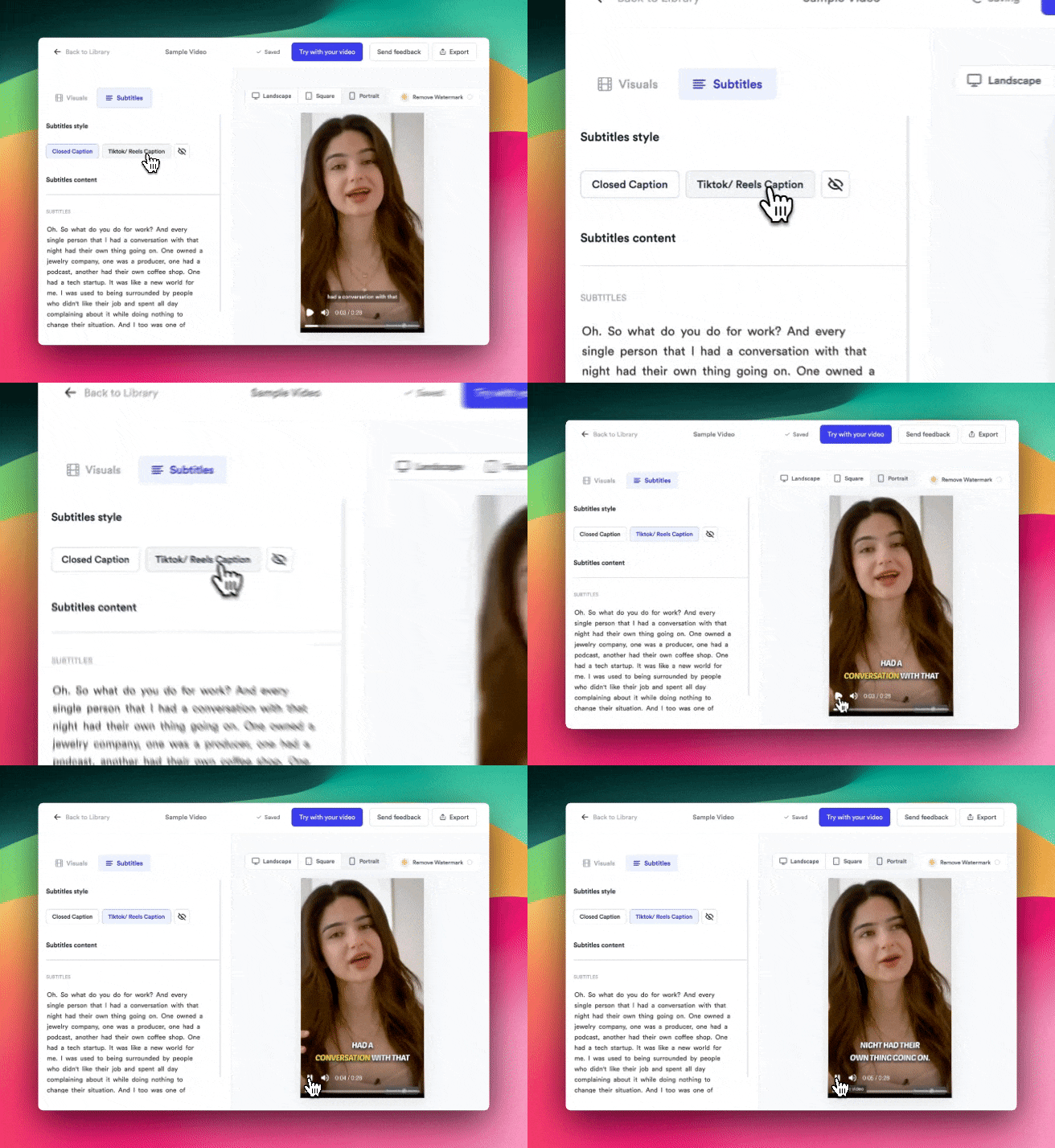
Jupitrr can directly add Open Captions to your video:
- Step 1 - Sign up on Jupitrr
- Step 2 - Go to “AI Video”
- Step 3 - Upload your video
- Step 4 - Go to “Subtitles”
- Step 5 - Select the caption style
Tip - Jupiter also lets you add Open captions in a “Closed Caption” style - Step 6 - Export and download the video
Final words
Closed captions and open captions have a very slight but stark difference. While closed captions can be turned off, open captions are a part of the video. However, closed captions and open captions both have their own use cases.
If you want to add either of them, using Jupitrr for free would be the best option for you.