




iMovie
How to Change Aspect Ratio in iMovie? - Guide for iPad, iPhone and Mac

Thomas Choi• 3 min read
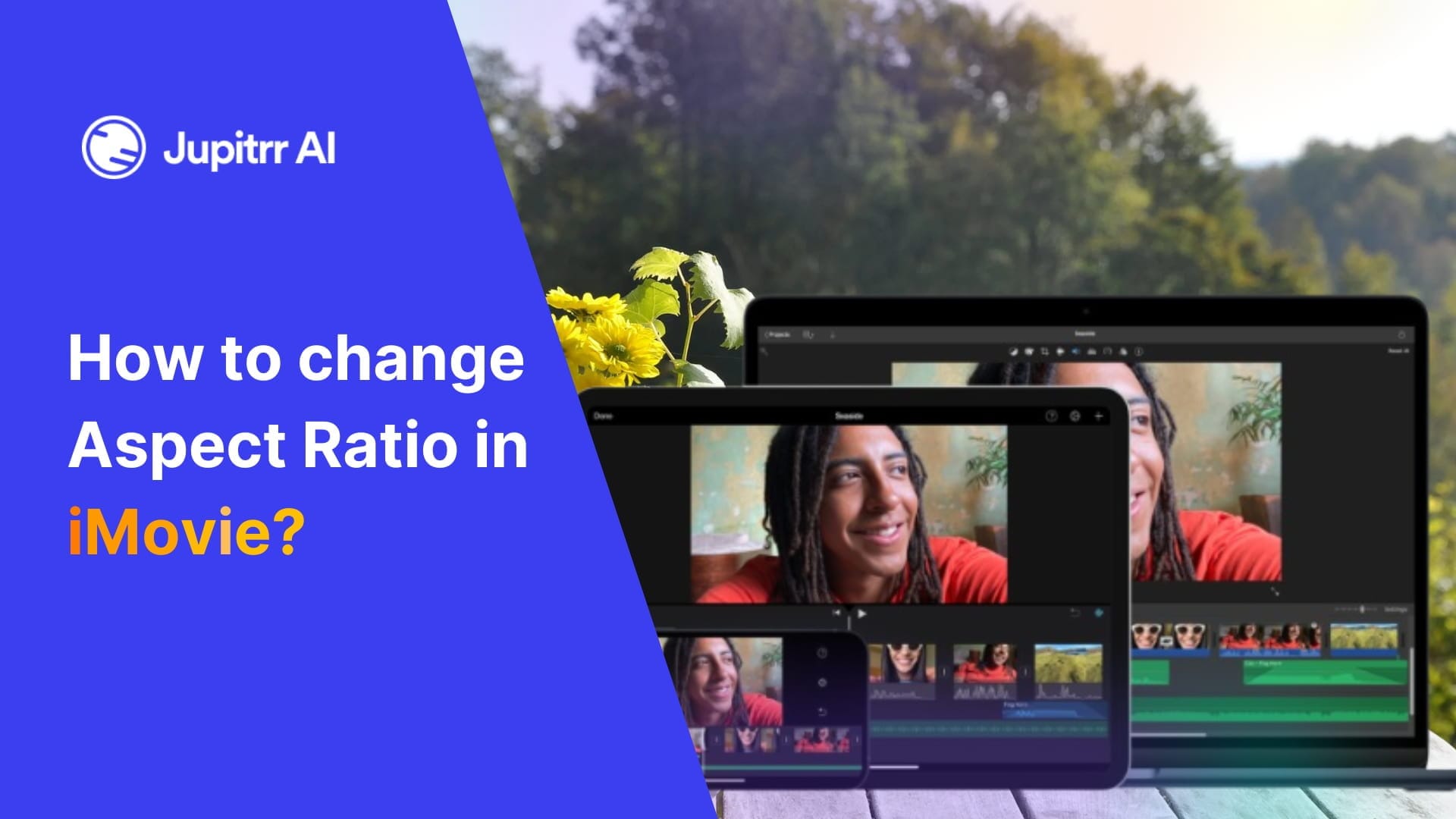
<p>iMovie is one of the most popular video editing tools, ranking just behind Adobe Premiere and Final Cut Pro. However, iMovie is not for high-level video editing. It is best for basic editing like trimming, adding filters, etc. </p><p>While it is a simple tool, many of its features, such as changing the aspect ratio, can be difficult to use because they are hidden behind a button.</p><p>In this article, we will tell you how to change the aspect ratio in iMovie on iPhone, iPad, and Mac devices. </p><h2 id="how-to-change-aspect-ratio-in-imovie-on-iphone-or-ipad">How to Change Aspect Ratio in iMovie on iPhone or iPad?</h2><p>Many people use iMovie on an iPhone or iPad. While it does not offer many features, the iMovie app is quite a blessing for new users because of its simplicity.</p><p>However, many people can't find how to change aspect ratio in the iMovie app. </p><figure class="kg-card kg-image-card kg-card-hascaption"><img src="https://jupitrr.ghost.io/content/images/2024/11/How-to-change-the-aspect-ratio-in-iMovie-on-an-iPhone.gif" class="kg-image" alt="Just pinch in or out to set the aspect ratio in iMovie on iPhone" loading="lazy" width="1120" height="630" srcset="https://jupitrr.ghost.io/content/images/size/w600/2024/11/How-to-change-the-aspect-ratio-in-iMovie-on-an-iPhone.gif 600w, https://jupitrr.ghost.io/content/images/size/w1000/2024/11/How-to-change-the-aspect-ratio-in-iMovie-on-an-iPhone.gif 1000w, https://jupitrr.ghost.io/content/images/2024/11/How-to-change-the-aspect-ratio-in-iMovie-on-an-iPhone.gif 1120w" sizes="(min-width: 720px) 720px"><figcaption><span style="white-space: pre-wrap;">Just pinch in or out to set the aspect ratio in iMovie on iPhone</span></figcaption></figure><p>To change the aspect ratio of your project in iMovie on iPhone, follow these steps:</p><ol><li>Launch the iMovie app on your iPhone</li><li>Either create a new project or open an existing one where you want to change the aspect ratio</li><li>Click on the magnifier icon</li><li>Pinch in or out to set the aspect ratio or the dimensions of the video</li><li>Click on Done</li></ol><h2 id="how-to-change-aspect-ratio-in-imovie-on-mac">How to Change Aspect Ratio in iMovie on Mac?</h2><p>Many people use the iMovie on a Mac device. Using iMovie on a MacBook or iMac makes the process easier because the features are more accessible.</p><p>However, changing the aspect ratio on Mac is quite a task.</p><p>To change the aspect ratio in iMovie on Mac, follow these steps:</p><figure class="kg-card kg-image-card kg-card-hascaption"><img src="https://jupitrr.ghost.io/content/images/2024/11/How-to-change-the-aspect-ratio-in-iMovie-on-Mac-Devices.gif" class="kg-image" alt="Use the Crop tool in iMovie to change the aspect ratio of any video on a Mac" loading="lazy" width="1120" height="630" srcset="https://jupitrr.ghost.io/content/images/size/w600/2024/11/How-to-change-the-aspect-ratio-in-iMovie-on-Mac-Devices.gif 600w, https://jupitrr.ghost.io/content/images/size/w1000/2024/11/How-to-change-the-aspect-ratio-in-iMovie-on-Mac-Devices.gif 1000w, https://jupitrr.ghost.io/content/images/2024/11/How-to-change-the-aspect-ratio-in-iMovie-on-Mac-Devices.gif 1120w" sizes="(min-width: 720px) 720px"><figcaption><span style="white-space: pre-wrap;">Use the Crop tool in iMovie to change the aspect ratio of any video on a Mac</span></figcaption></figure><ol><li>Open iMovie and choose "New App Preview" from the File menu to start a project in portrait mode</li><li>Add a photo or video to the timeline to set the project ratio to 9:16</li><li>Drag your video footage into the timeline after the vertical content. It will automatically fit the 9:16 ratio</li><li>Remove the initial vertical content and use the crop tool to center your subject. Make any additional edits if necessary</li><li>Click the share button and select "App Preview" to save your video in 9:16 aspect ratio, or choose "Export File" for other options</li></ol><h2 id="the-simplest-way-to-adjust-video-dimensions-without-imovie">The Simplest Way to Adjust Video Dimensions Without iMovie</h2><p>If iMovie has left you confused, there is an even easier way to change the dimensions or the aspect ratio of a video.</p><p><strong>Use Jupitrr AI to change the dimension of any video that fits for different platforms.</strong></p><p>Here are the steps to change the aspect ratio of a video using Jupitrr AI:</p><figure class="kg-card kg-image-card kg-card-hascaption"><img src="https://jupitrr.ghost.io/content/images/2024/03/Chaging-aspect-ratio-using-Jupitrr.gif" class="kg-image" alt="Using Jupitrr AI to change the aspect ratio of a video" loading="lazy" width="644" height="480" srcset="https://jupitrr.ghost.io/content/images/size/w600/2024/03/Chaging-aspect-ratio-using-Jupitrr.gif 600w, https://jupitrr.ghost.io/content/images/2024/03/Chaging-aspect-ratio-using-Jupitrr.gif 644w"><figcaption><span style="white-space: pre-wrap;">Using Jupitrr AI to change the aspect ratio of a video</span></figcaption></figure><ol><li>Go to Jupitrr AI</li><li>Go to the <a href="https://jupitrr.com/create-slideshow?ref=jupitrr.ghost.io" rel="noreferrer">AI Video feature </a></li><li>Upload your video</li><li>Select the dimensions you want the video in from:<ol><li>Landscape - Perfect for platforms like YouTube, Dailymotion, etc.</li><li>Square - Perfect for Instagram or Facebook posts</li><li>Portrait - Perfect for TikTok, Instagram Reels, YouTube Shorts, etc.</li></ol></li><li>Export and save the video</li></ol><h2 id="final-words">Final Words</h2><p>iMovie was launched to give people an easy way to edit their videos. However, it still has a learning curve. </p><p>We at Jupitrr AI are building a video editor for everyone that requires the least time and effort to edit any video.</p><h3 id="faq-answers"><strong>FAQ Answers</strong></h3><h4 id="1-why-does-imovie-not-let-me-change-aspect-ratio-directly"><strong>1. Why does iMovie not let me change aspect ratio directly?</strong></h4><p>iMovie simplifies editing for beginners, so it lacks a direct aspect ratio adjustment. You can use the Crop Tool or explore tools like Jupitrr AI for easier resizing.</p><h4 id="2-can-i-use-imovie-for-professional-level-editing"><strong>2. Can I use iMovie for professional-level editing?</strong></h4><p>iMovie is great for basic edits but lacks advanced features like multi-camera editing or color grading. For professional work, use tools like Final Cut Pro, Adobe Premiere Pro, or Jupitrr AI.</p><div class="kg-card kg-button-card kg-align-center"><a href="https://jupitrr.com/create-slideshow?ref=jupitrr.ghost.io" class="kg-btn kg-btn-accent">Try changing the aspect ratio of your video using Jupitrr AI</a></div>