How to Change Aspect Ratio in iMovie? - Guide for iPad, iPhone and Mac

iMovie is one of the most popular video editing tools, ranking just behind Adobe Premiere and Final Cut Pro. However, iMovie is not for high-level video editing. It is best for basic editing like trimming, adding filters, etc.
While it is a simple tool, many of its features, such as changing the aspect ratio, can be difficult to use because they are hidden behind a button.
In this article, we will tell you how to change the aspect ratio in iMovie on iPhone, iPad, and Mac devices.
How to Change Aspect Ratio in iMovie on iPhone or iPad?
Many people use iMovie on an iPhone or iPad. While it does not offer many features, the iMovie app is quite a blessing for new users because of its simplicity.
However, many people can't find how to change aspect ratio in the iMovie app.
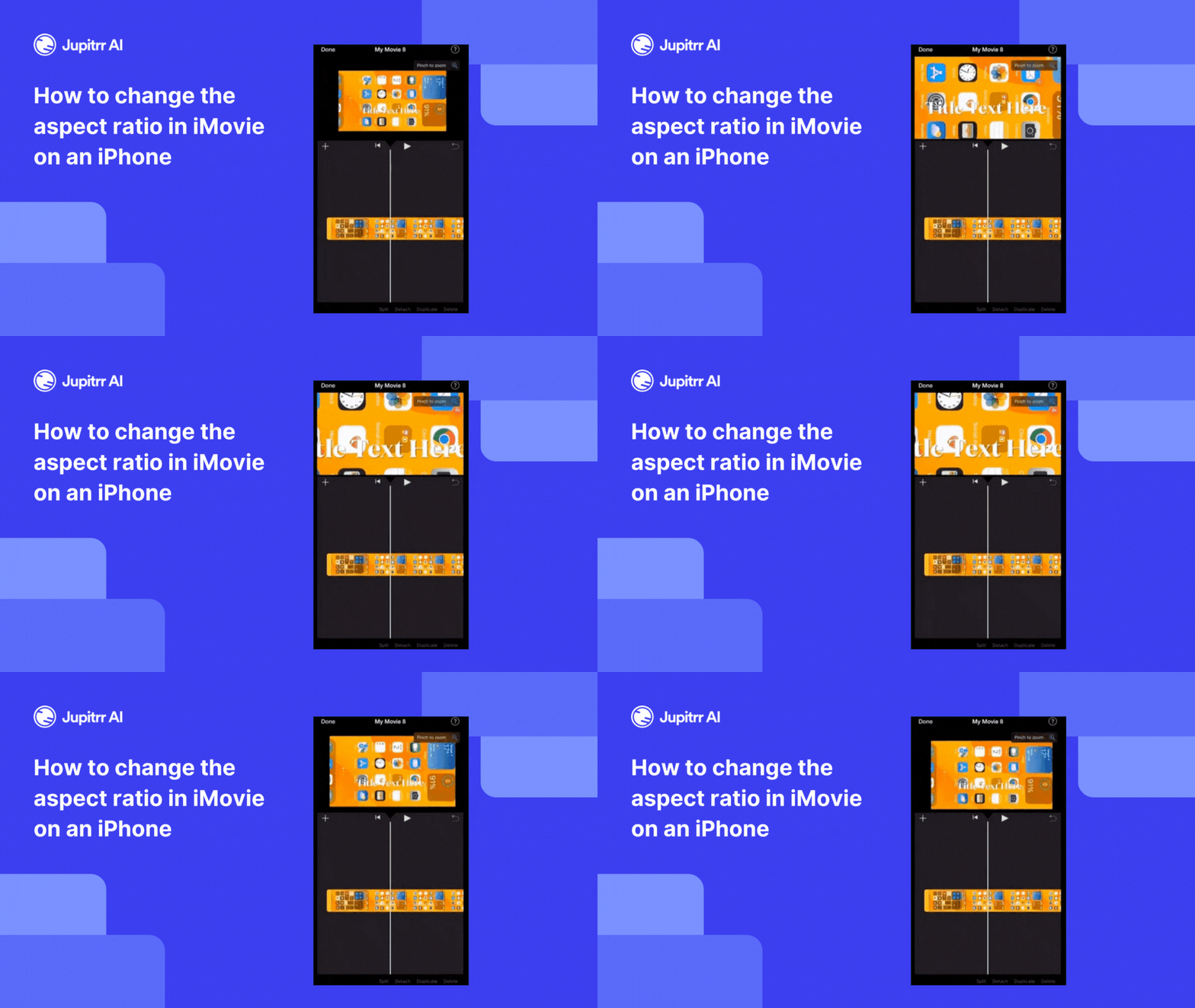
To change the aspect ratio of your project in iMovie on iPhone, follow these steps:
- Launch the iMovie app on your iPhone
- Either create a new project or open an existing one where you want to change the aspect ratio
- Click on the magnifier icon
- Pinch in or out to set the aspect ratio or the dimensions of the video
- Click on Done
How to Change Aspect Ratio in iMovie on Mac?
Many people use the iMovie on a Mac device. Using iMovie on a MacBook or iMac makes the process easier because the features are more accessible.
However, changing the aspect ratio on Mac is quite a task.
To change the aspect ratio in iMovie on Mac, follow these steps:
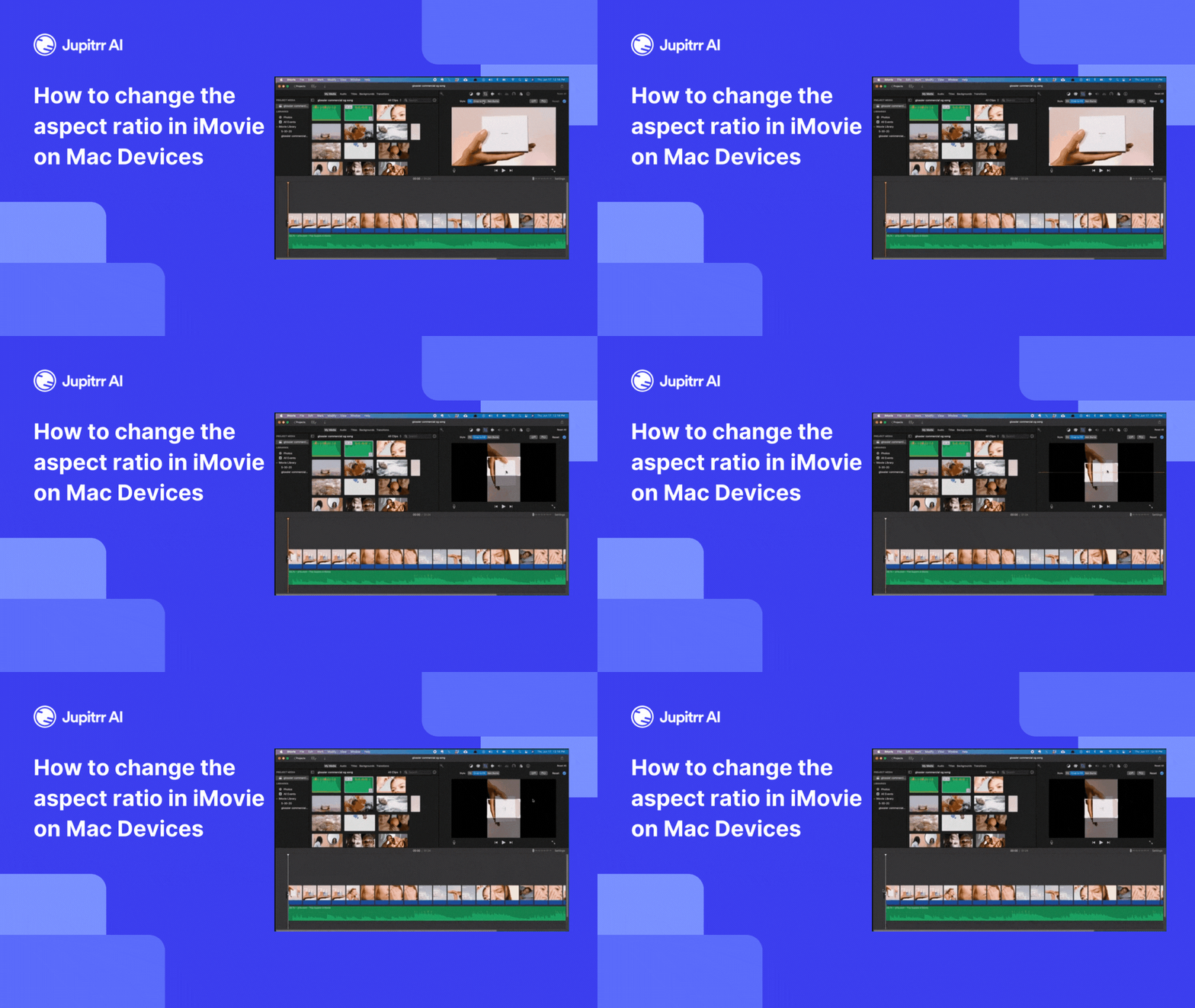
- Open iMovie and choose "New App Preview" from the File menu to start a project in portrait mode
- Add a photo or video to the timeline to set the project ratio to 9:16
- Drag your video footage into the timeline after the vertical content. It will automatically fit the 9:16 ratio
- Remove the initial vertical content and use the crop tool to center your subject. Make any additional edits if necessary
- Click the share button and select "App Preview" to save your video in 9:16 aspect ratio, or choose "Export File" for other options
The Simplest Way to Adjust Video Dimensions Without iMovie
If iMovie has left you confused, there is an even easier way to change the dimensions or the aspect ratio of a video.
Use Jupitrr AI to change the dimension of any video that fits for different platforms.
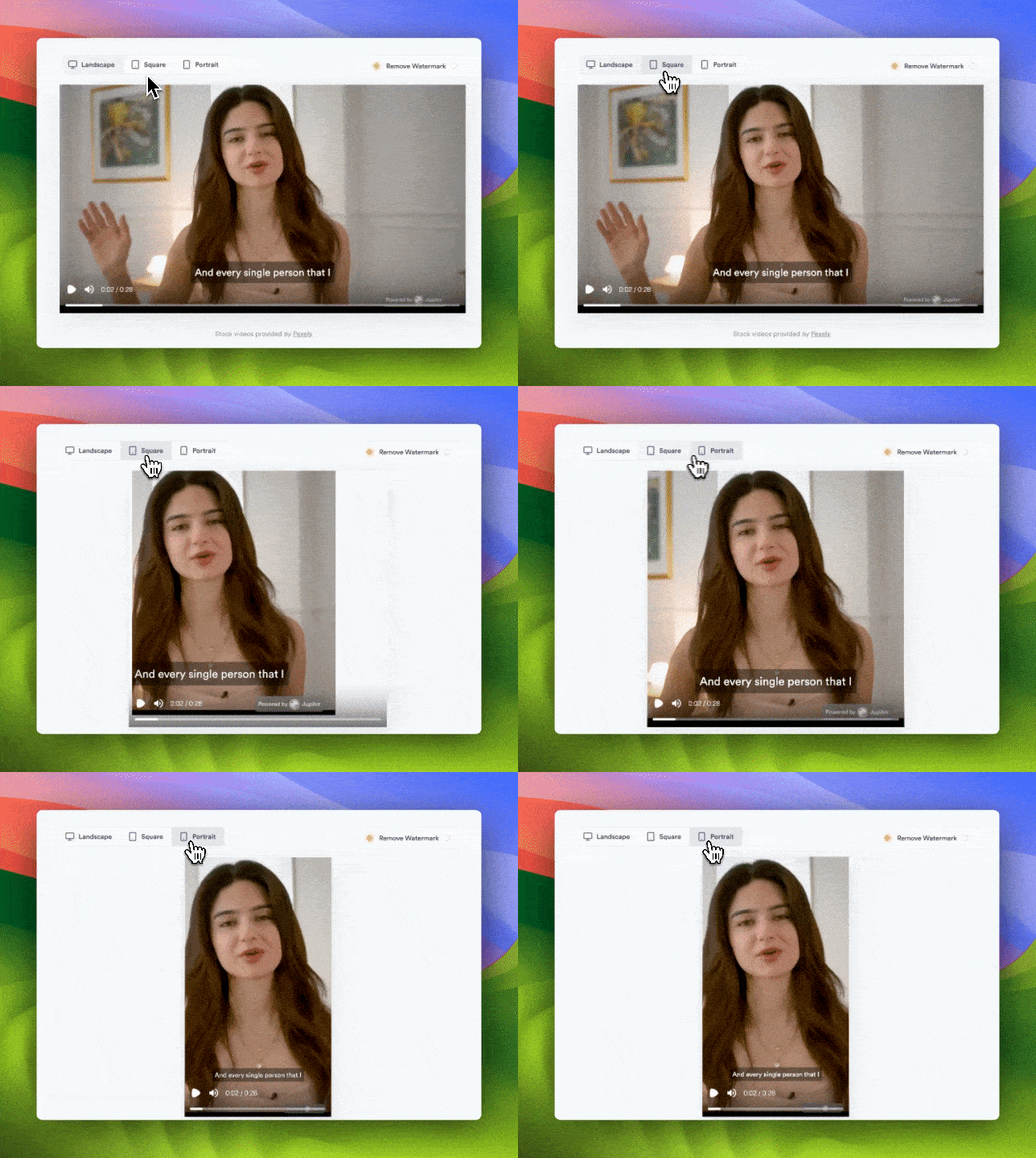
Here are the steps to change the aspect ratio of a video using Jupitrr AI:
- Go to Jupitrr AI
- Go to the AI Video feature
- Upload your video
- Select the dimensions you want the video in from:
- Landscape - Perfect for platforms like YouTube, Dailymotion, etc.
- Square - Perfect for Instagram or Facebook posts
- Portrait - Perfect for TikTok, Instagram Reels, YouTube Shorts, etc.
- Export and save the video
Final Words
iMovie was launched to give people an easy way to edit their videos. However, it still has a learning curve.
We at Jupitrr AI are building a video editor for everyone that requires the least time and effort to edit any video.
FAQ Answers
1. Why does iMovie not let me change aspect ratio directly?
iMovie simplifies editing for beginners, so it lacks a direct aspect ratio adjustment. You can use the Crop Tool or explore tools like Jupitrr AI for easier resizing.
2. Can I use iMovie for professional-level editing?
iMovie is great for basic edits but lacks advanced features like multi-camera editing or color grading. For professional work, use tools like Final Cut Pro, Adobe Premiere Pro, or Jupitrr AI.