How to Post a Video on Linkedin?

LinkedIn is no longer just a digital resume—it's where professionals share ideas, grow their brands, and connect with their audience.
One of the best ways to stand out? Posting videos on LinkedIn.
Video posts drive more engagement, tell your story more effectively, and help you connect on a human level. In this guide, you’ll learn how to post a video on LinkedIn, plus tips to create, optimise, and track high-performing content.
How to Post a Video on LinkedIn
Before we talk strategy, let’s start with the basics: how to upload a video to LinkedIn. The process is slightly different depending on whether you're using desktop or mobile, but both are quick and straightforward.
How to Post a LinkedIn Video On Desktop
- Step 1 - Go to your LinkedIn homepage.
- Step 2 - At the top of the feed, click on “Start a post.”
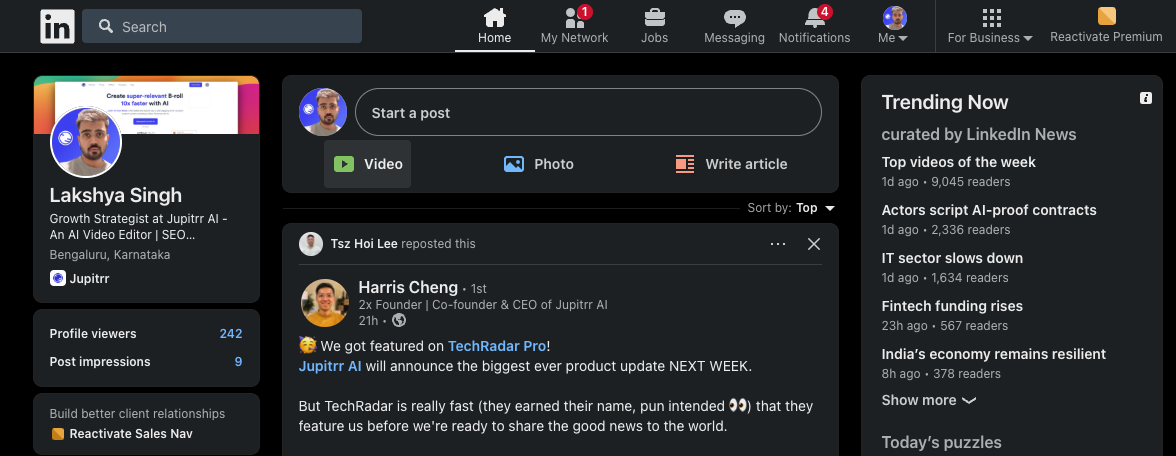
- Step 3 - Click the video icon
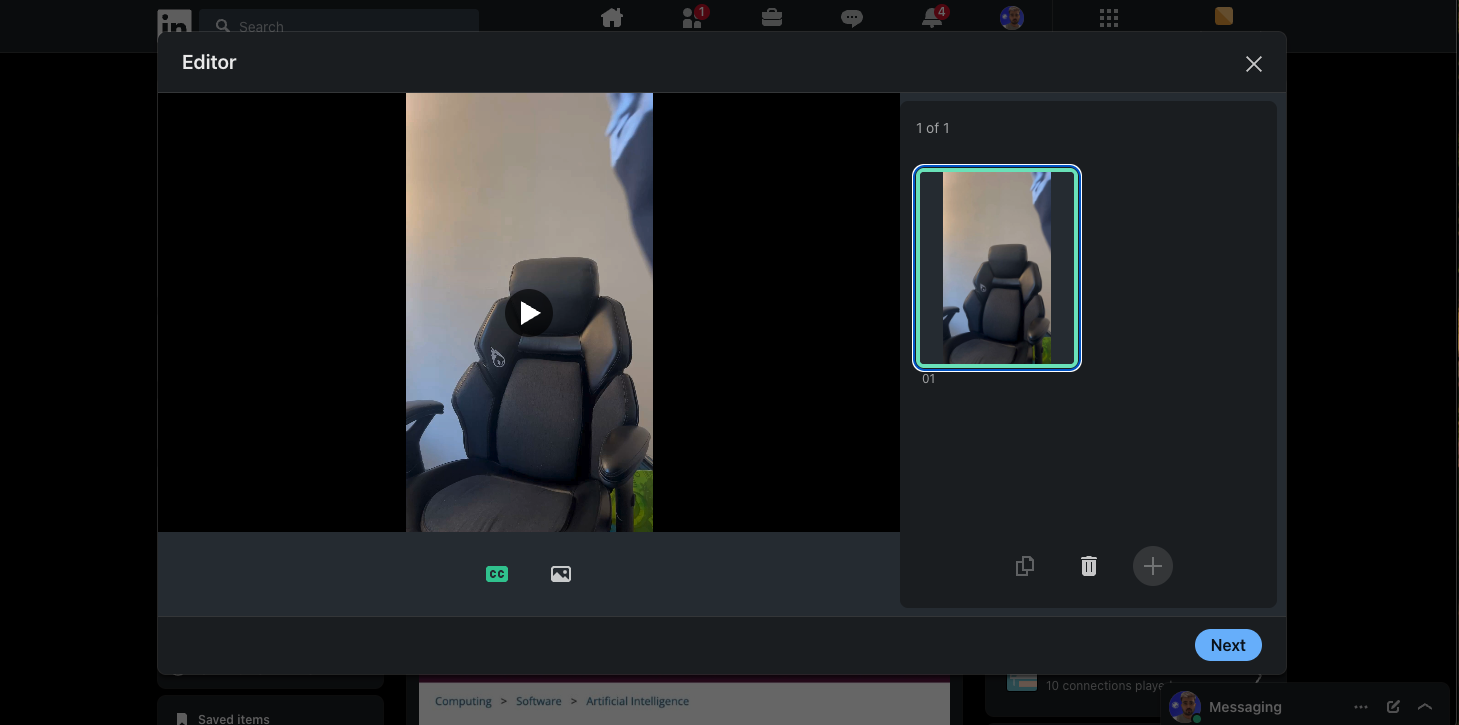
- Step 4 - Choose the video file from your computer and adjust the frame if you want.
- Step 5 - Add a caption or description. This is your chance to include context, relevant hashtags, or a compelling question.
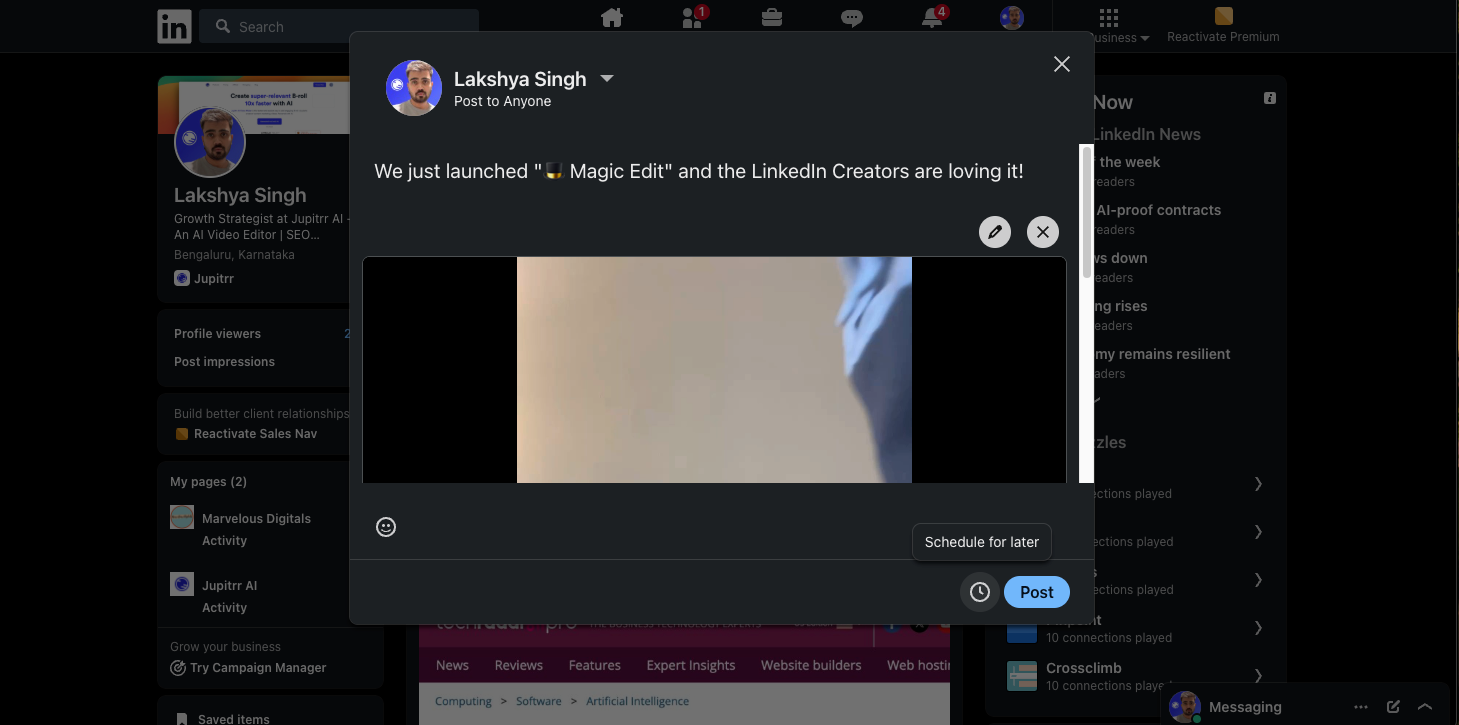
- Step 6 - Hit Post or Schedule for Later.
How to Post a LinkedIn Video On Mobile
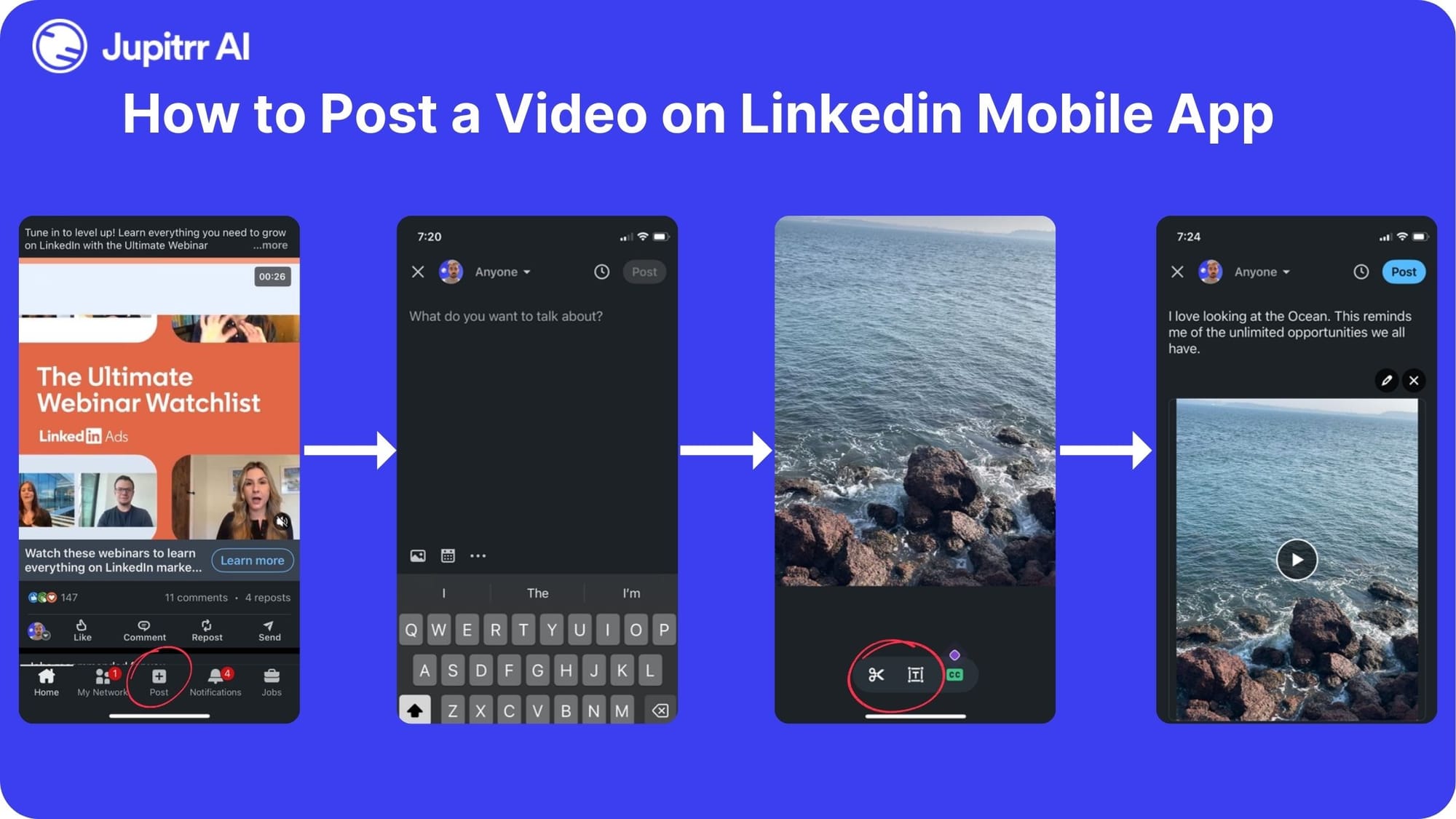
- Step 1 - Open the LinkedIn app.
- Step 2 - Tap the “+” icon or “Post” at the bottom.
- Step 3 - Select the media icon at the bottom left corner.
- Step 4 - Choose a video from your gallery or record one directly.
- Step 5 - Make any final edits like trimming the video or adding text overlay.
- Step 6 - Add captions, hashtags, or mentions.
- Step 7 - Tap Post or Schedule for Later.
LinkedIn Video Requirements
To avoid upload errors, keep these technical specs in mind:
- File size: Up to 5GB
- Duration: Between 3 seconds and 10 minutes
- Format: MP4 is recommended, but AVI, MOV, and WebM are also supported
- Aspect ratios: 1:2.4 to 2.4:1 (square or vertical videos perform well on mobile)
Production Best Practices
Now that you know how to post a video on LinkedIn, let’s make sure your video looks and sounds great. Here are a few production tips to level up your content:
1. Use High-Quality Gear (or Make Your Phone Work for You)
Crisp visuals and clear audio make a huge difference. You don’t need a full studio setup—just good lighting, a quiet space, and a tripod or phone stabiliser will go a long way.
2. Hook Viewers in the First 3 Seconds
Attention spans are short. Open strong with a bold statement, question, or visual to stop the scroll.
3. Keep it Short and Focused
LinkedIn users are often multitasking. Create short videos for your audience. Aim for 30–90 seconds for best engagement. Get to the point, deliver value, and wrap up with a clear message or CTA.
4. Add Captions
Many users watch videos with the sound off. Subtitles ensure your message gets across regardless. Plus, it’s more inclusive.
Pro tip: You can simply upload your video and generate Captions for it on Jupitrr AI.
5. Plan Your Script
A clear outline or script will help keep your message tight and purposeful. Think: what’s the one takeaway you want your audience to remember?
6. Focus on Talking Head Videos
Talking head videos—where you speak directly to the camera—are ideal for LinkedIn. They feel personal, build trust, and are easy to produce with minimal gear. Keep eye contact, speak clearly, and maintain good lighting to create a professional impression. If you’re new to this format, check out our guide on creating professional talking head videos for tips on setup, delivery, and editing.
7. Edit Smart with Jupitrr AI’s Magic Edit
If you want to polish your video fast, Jupitrr AI’s Magic Edit is a game-changer. It automatically trims silences, adds jump cuts, and enhances visuals—all in seconds. It’s perfect for creators who want to look professional without spending hours editing.
Optimization Tactics
Creating a great video is just the start. To get your video in front of more people, here’s how to optimise your LinkedIn video post:
1. Enhance Video Quality Without Slowing Load Time
Compress your video without sacrificing quality. Tools like Jupitrr's Magic Edit presets can help you strike the right balance between high-resolution and fast loading—especially important for mobile users.
2. Choose the Right Editing Preset
Magic Edit on Jupitrr comes with different presets to match your brand vibe—clean cuts, bold text overlays, or even cinematic effects. Try out a few styles and see which one resonates most with your audience.
3. Use Relevant Keywords and Hashtags
Include keywords like “LinkedIn video,” “upload video to LinkedIn,” and “LinkedIn video post” in your description to improve search visibility. Hashtags like #LinkedInTips, #VideoMarketing, or your industry niche can help reach the right viewers.
4. Engage with Comments
Don’t just post and ghost. Respond to comments to build relationships and signal to the LinkedIn algorithm that your post is active and valuable.
5. Cross-Promote Your Video
Share your LinkedIn video on your newsletter, embed it on your website, or reshare on Twitter or Instagram to drive additional views.
Measuring Success of LinkedIn Video
After your video is live, how do you know it’s working? LinkedIn offers some basic but useful analytics.
Key Metrics to Track:
- Views: How many times your video has been watched for at least 3 seconds.
- Impressions: The number of times your post appeared in someone’s feed.
- Engagements: Likes, comments, and shares. These signal how well your content resonated.
- Click-Throughs: If you include a link in your post, track how many people clicked it.
- Audience Demographics: Learn who’s watching—job titles, industries, locations—which can inform your future content strategy.
Also read: How to get more views on your short videos?
Use this data to test what works: video length, posting time, captions, CTAs, or content topics. Over time, you’ll build a clearer picture of what engages your audience.
Conclusion
Posting videos on LinkedIn helps you stand out, connect authentically, and grow your presence. With tools like Jupitrr AI’s Magic Edit, creating polished, engaging videos takes just seconds. Now that you know how to post a video on LinkedIn—start creating and get noticed.